
Download all your iCloud photos to a Windows PC
Export iCloud for Windows copies your entire iCloud Photos library to your PC or an external drive in original quality — without syncing it through iCloud for Windows first.
Why not just use iCloud for Windows?
iCloud for Windows is built for syncing, not exporting. It mirrors your library into File Explorer, downloads on its own schedule, and — because it’s a two-way sync — deleting a photo from that folder deletes it from iCloud and all your devices too. For large libraries, waiting for everything to download can take days.
Downloading from iCloud.com in a browser is limited to 1,000 items at a time and leaves you with a pile of ZIP files to unpack.
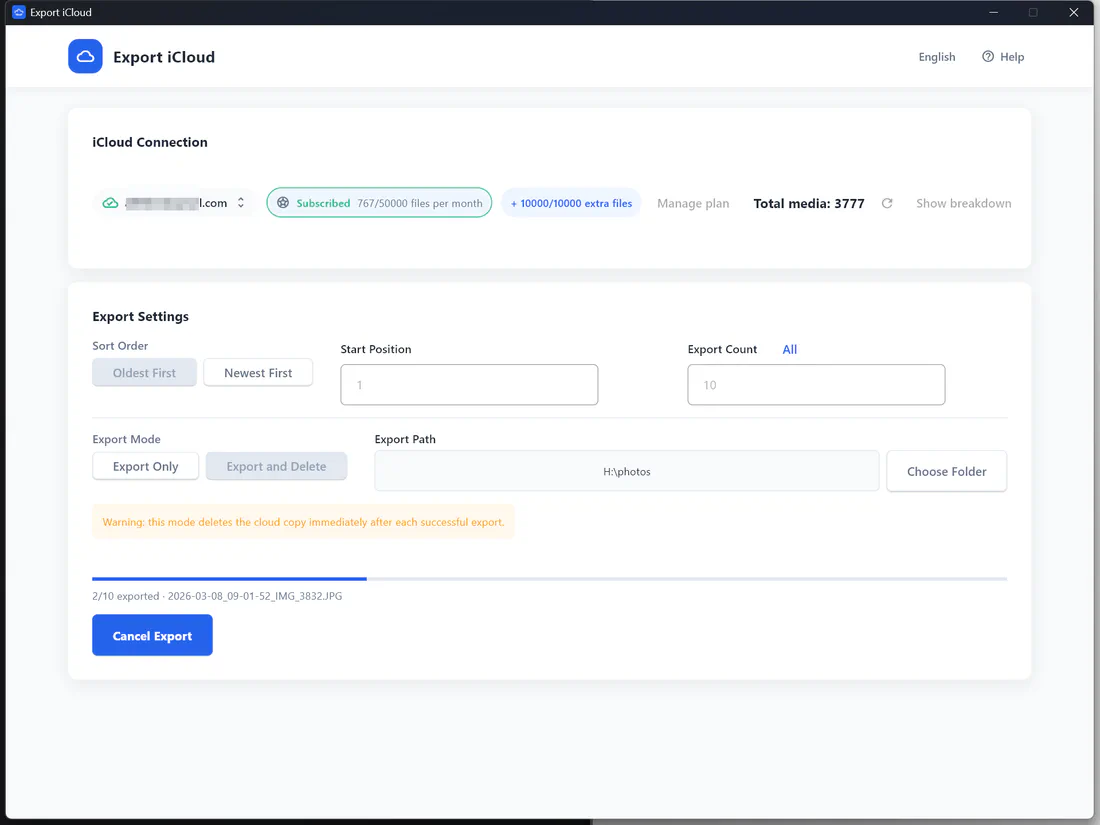
Export iCloud is a dedicated export tool: sign in, pick a folder, click Start.
How to download iCloud photos to your PC
- Download Export iCloud for Windows and run the installer (or use the portable ZIP).
- Sign in with your Apple ID and enter the two-factor code from your iPhone.
- Choose the export folder — for example
D:\iCloud Photosor an external drive likeE:\. - Pick Export Only to keep everything in iCloud, or Export and Delete to also free up iCloud storage.
- Click Start Export. Progress, the current file name and your remaining quota update live.
Your photos land in the folder as original files named by date, ready for the Windows Photos app, Lightroom, or any backup tool.
Back up to an external drive or NAS
Choose any drive letter or mapped network share as the export path. See how to move iCloud photos to an external hard drive.
Requirements
- Windows 10 or Windows 11, 64-bit
- An Apple ID with access to two-factor codes
- Enough free disk space for the items you export (roughly the size shown in iCloud storage settings for Photos)
Frequently asked questions
Is there a Mac version?
macOS says the app "cannot be opened". What should I do?
Windows SmartScreen shows a warning. Is that normal?
What are the system requirements?
How do I update the app?
Take your photos back from iCloud
Download your whole iCloud Photos library to your computer in original quality — then free up the space you're paying for.