
Download all your iCloud photos at once — not 1,000 at a time
iCloud.com caps every download at 1,000 items. Export iCloud downloads your whole library in one run, as original files, straight to the folder you choose.
On this page
Your options for downloading everything
| Method | Whole library at once? | Original quality? | Notes |
|---|---|---|---|
| iCloud.com in a browser | No — max 1,000 items per selection | Optional (“Unmodified Originals”) | Downloads as ZIP files you have to extract |
| iCloud for Windows | Eventually, via sync | Yes, with settings | Two-way sync; slow for large libraries |
| Mac Photos app | Yes, if the whole library fits on your Mac | Yes, via “Export Unmodified Original” | Requires local space for the entire library |
| Apple data copy request (privacy.apple.com) | Yes | Yes | Can take several days; delivered as many large ZIPs |
| Export iCloud | Yes | Yes, always | Direct to any folder or drive, with optional delete |
Download everything with Export iCloud
- Download the app for Windows or Mac.
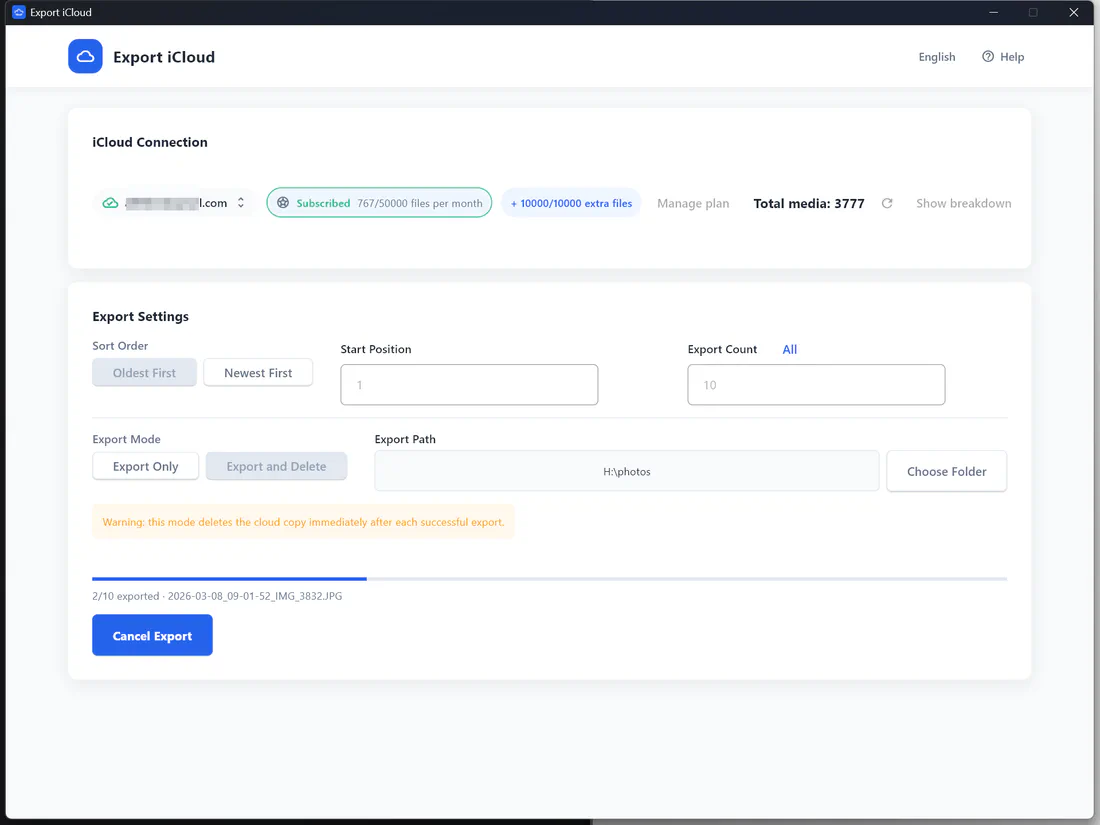
- Sign in with your Apple ID and two-factor code. The app shows your total media — photos and videos.
- Click All next to Export Count to select the whole library.
- Choose a folder and click Start Export.
That’s it. For very large libraries you can also export in batches using Start Position and Export Count — for example items 1–10,000 today and 10,001–20,000 tomorrow.
What you get
- Every photo and video as the original file — HEIC, JPEG, PNG, RAW, MOV, MP4.
- File names that start with the capture date, like
2023-12-25_09-14-02_IMG_1234.HEIC, so your archive sorts chronologically. - An optional Export and Delete mode if your goal is to free up iCloud storage.
Related guides: how to export photos from iCloud · how to download full-resolution photos from iCloud
Frequently asked questions
What is Export iCloud?
Export iCloud is a desktop app for Windows and macOS that downloads your iCloud Photos library — photos and videos in original quality — to a folder on your computer or an external drive. It can optionally delete each item from iCloud after it is saved, so you can free up iCloud storage without paying for a bigger plan.
How does it work?
- Download and install the app for Windows or Mac.
- Sign in with your Apple ID and enter the two-factor code if asked.
- Check the photo and video count, choose an export folder, start position and number of items.
- Pick Export Only or Export and Delete, then start. Progress and quota update live.
Want screenshots? See the step-by-step usage guide.
Are photos and videos exported in full resolution?
Yes. The app requests the original file from iCloud for every photo and video — HEIC, JPEG, PNG, RAW, MOV or MP4 — so nothing is recompressed. Each file is saved with its capture date in the name, e.g.
2024-07-14_18-32-05_IMG_4821.HEIC.Is it safe? Do you see my photos or password?
Your photos are downloaded directly from Apple to your own computer and are never uploaded to our servers. Your Apple ID session is cached locally on your device so you don’t have to sign in every time; you can remove it at any time from the app. Our server only handles your subscription and file quota.
How does "Export and Delete" work?
In this mode each item is removed from iCloud only after it has been downloaded successfully. If a download fails, the item stays in iCloud. Deleted items go to iCloud’s Recently Deleted album, where Apple keeps them for up to 30 days. We still recommend checking your local copy before emptying Recently Deleted.
How do I get help?
Email support@export-icloud.com. Including the app version from Help → About helps us respond faster.
Take your photos back from iCloud
Download your whole iCloud Photos library to your computer in original quality — then free up the space you're paying for.